The "Responses" tab on the ticket on SpurrOpen, allows you to issue QR codes as well as customize responses on a product. To activate, ensure that the required toggle switch is turned on.
Steps to follow:
- After accessing the event portal
- Go to "Ticket Setup"
- Click on the word "Edit" beside the ticket
- Click the "Responses" tab
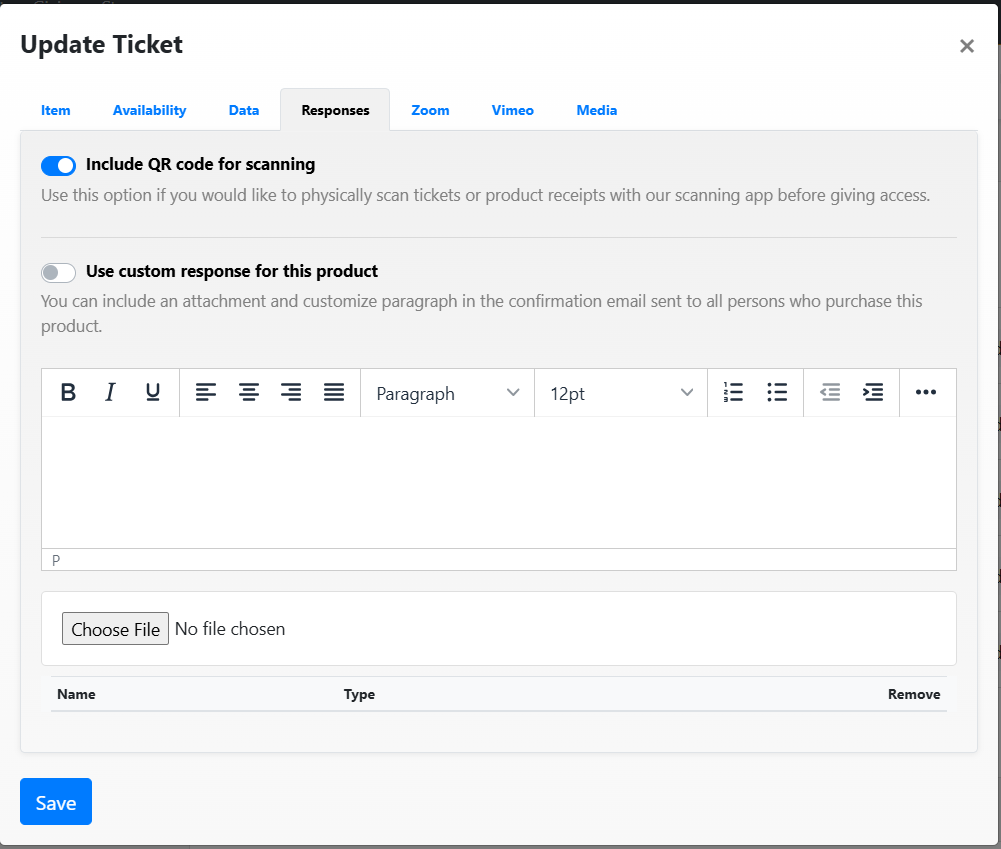
Additional steps to follow:
- Include QR Code - Allows for physical scanning of tickets or products
- Use custom response for this product - you may include a paragraph or send attached with specific information
- Files added may be removed by clicking "Remove"
- Click save
Was this article helpful?
That’s Great!
Thank you for your feedback
Sorry! We couldn't be helpful
Thank you for your feedback
Feedback sent
We appreciate your effort and will try to fix the article